Install Chrome Snaps in 3 steps
Chrome Web Store listing is pending. Until it’s live, download the zip and load it unpacked — about a minute in Chrome or Brave.
Requires Developer mode · Works in Google Chrome and Brave · Captures stay on your device
-
Download and unzip
Download and unzip Chrome-Snaps (somewhere you won’t delete the folder)
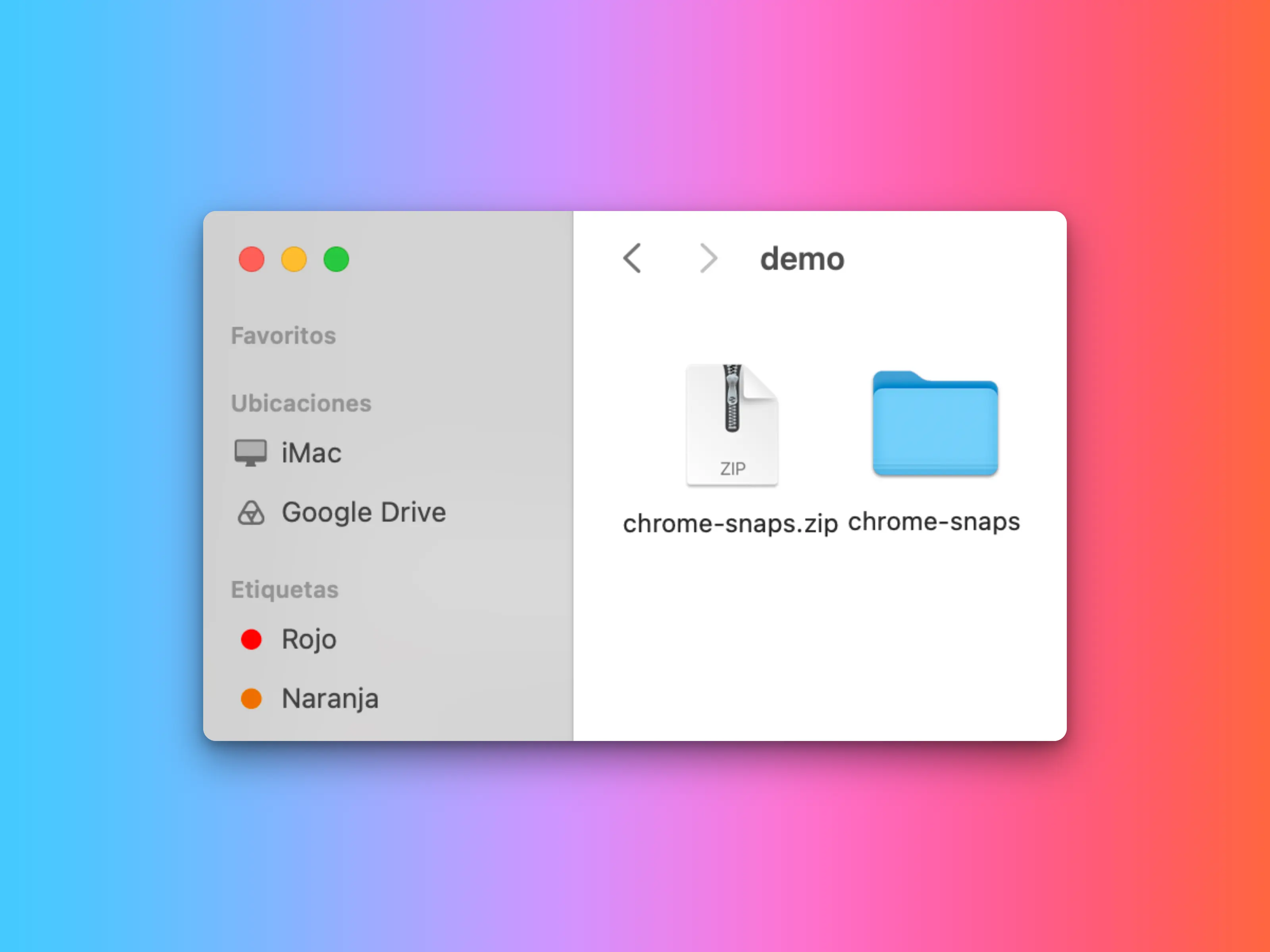
Keep the Chrome-Snaps folder -
Load the extension
-
Open
chrome://extensions( in Chrome — in Brave) - Turn on Developer mode
- Load unpacked and select the folder Chrome-Snaps
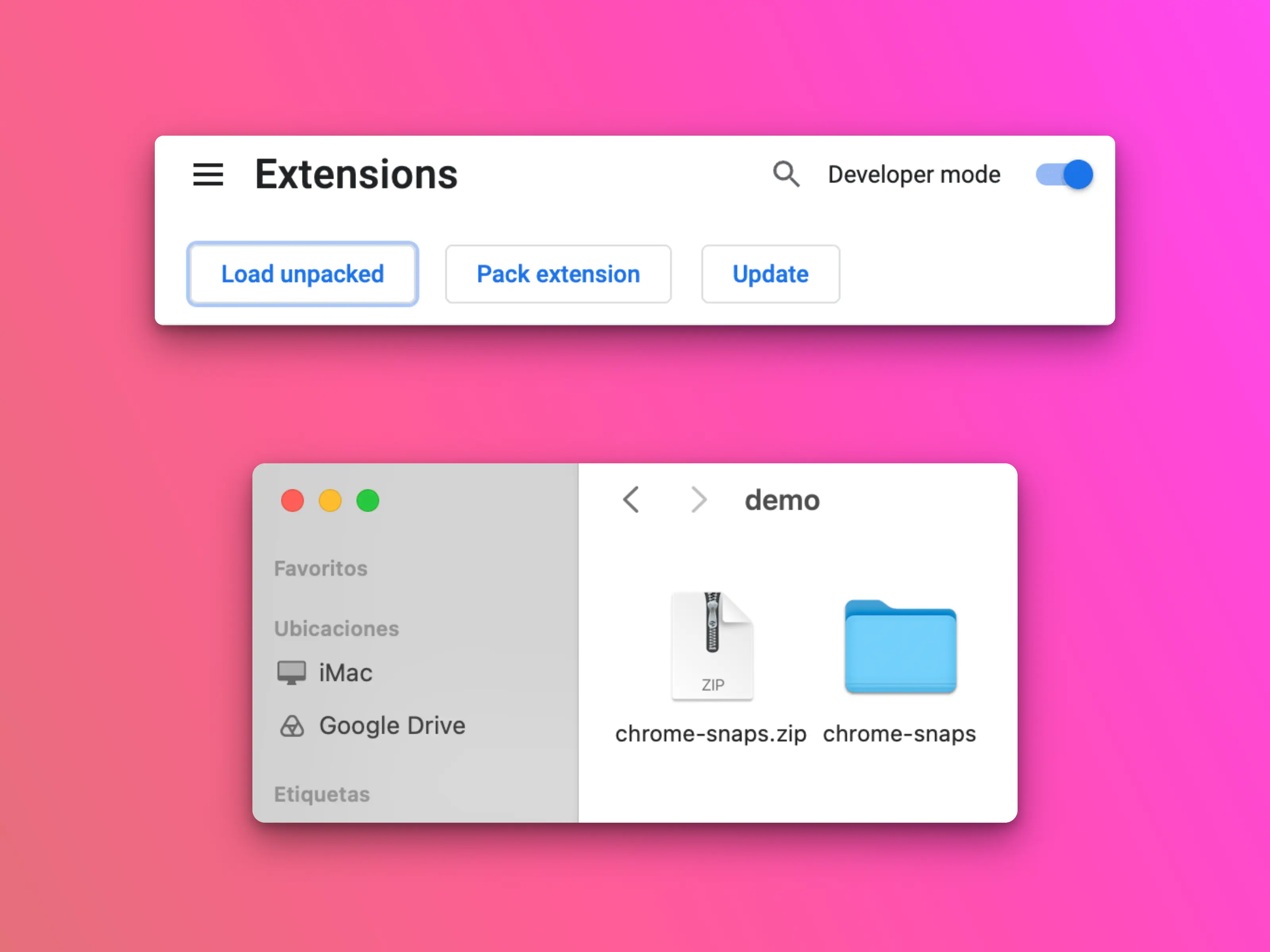
Developer mode → Load unpacked → Chrome-Snaps -
Open
-
Activate (optional)
Click the extension and paste your license key
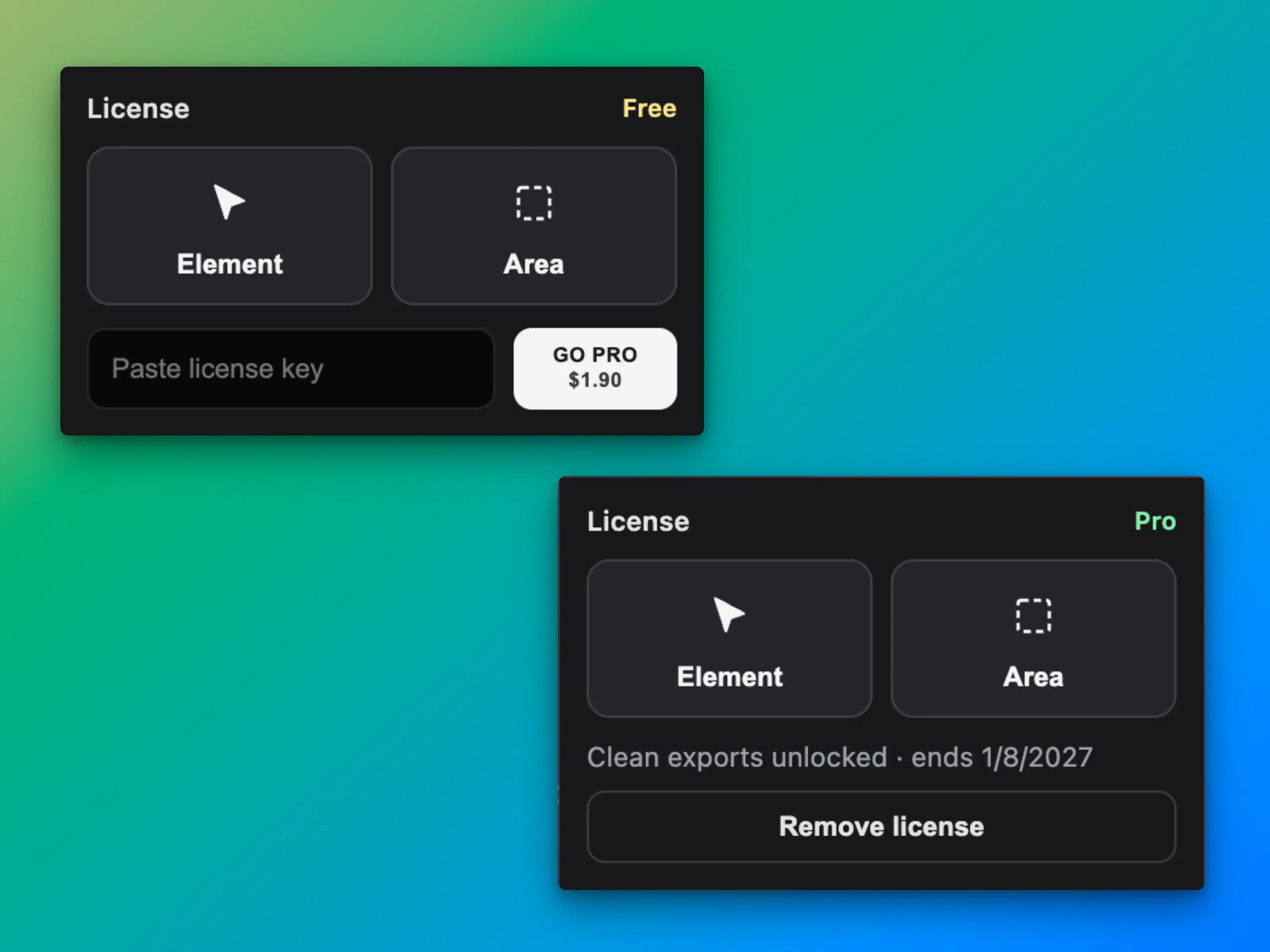
Paste license key → Activate
After install
- Open any normal webpage, refresh once, then use Element or Area.
- Free exports include a small watermark. Get Pro (pay what you want) for clean exports.
- Reinstalling after wiping the browser? Deactivate the old activation in your Lemon Squeezy order, then Activate again with the same key.
- “Unpacked / not from the store” warnings are expected until the Web Store listing is approved.